TaskSnap Guide — from setup to signed report
Everything TaskSnap can do, explained step by step: profile and company data, PDF job reports, jobs with timer, checklists and photos, customer signatures, tax export and encrypted backups.
Contents
- Quick start — your first job report in 5 steps
- 1. Profile — language, document language, currency, theme
- 2. PDF report — photo layout, protocol, dates, time tracking
- 3. Company data — logo, name, contact
- 4. Data, backup & security
- 5. Customers
- 6. Jobs — timer, checklist, photos, materials, signature
- 7. Dashboard
- FAQ
★ Quick start — your first job report in 5 steps
New to TaskSnap? Follow these five steps and your first customer report is ready in about ten minutes.
- Install TaskSnap
Download it from Google Play and open it. No account, no registration, no internet connection needed.
- Set language and currency
Open Profile: pick the app language, the document language used for your PDF reports, and your currency.
- Enter your company data
Still in Profile: add your logo, company name, email and phone. They appear on every report you send.
- Create a job
Tap New job, add a title, pick a customer, set the date, appointment time and your hourly rate.
- Track it and send the report
Start the timer, tick off your checklist steps, snap photos, add materials — then save and send the signed PDF to your customer by email or WhatsApp.
💡 Everything stays on your phone. TaskSnap has no cloud and no account, so the only data that ever leaves your device is the report or backup you send yourself.
1 Profile — language, document language, currency & theme
Your profile is where you configure TaskSnap once, so every job and every report is correct from then on.
1.1 Language (the app language)
This is the main language of the app itself. Set it to your mother tongue and work in the language you think in — menus, buttons and labels all follow this setting.
1.2 Document language (the language of your PDFs)
Separately from the app language, this is the language your generated PDF job reports are written in. That means you can run the app in your own language and still hand your customer a report in theirs — pick the language your customer reads.
💡 The classic combination: app in your mother tongue, reports in your customer's language. Two settings, no compromise.
1.3 Currency
The currency used for all calculations — hourly rate, materials and tax — and printed on every generated PDF.
1.4 Theme
Choose Standard (light) or Dark. It only changes how the app looks on your phone, whichever you prefer.
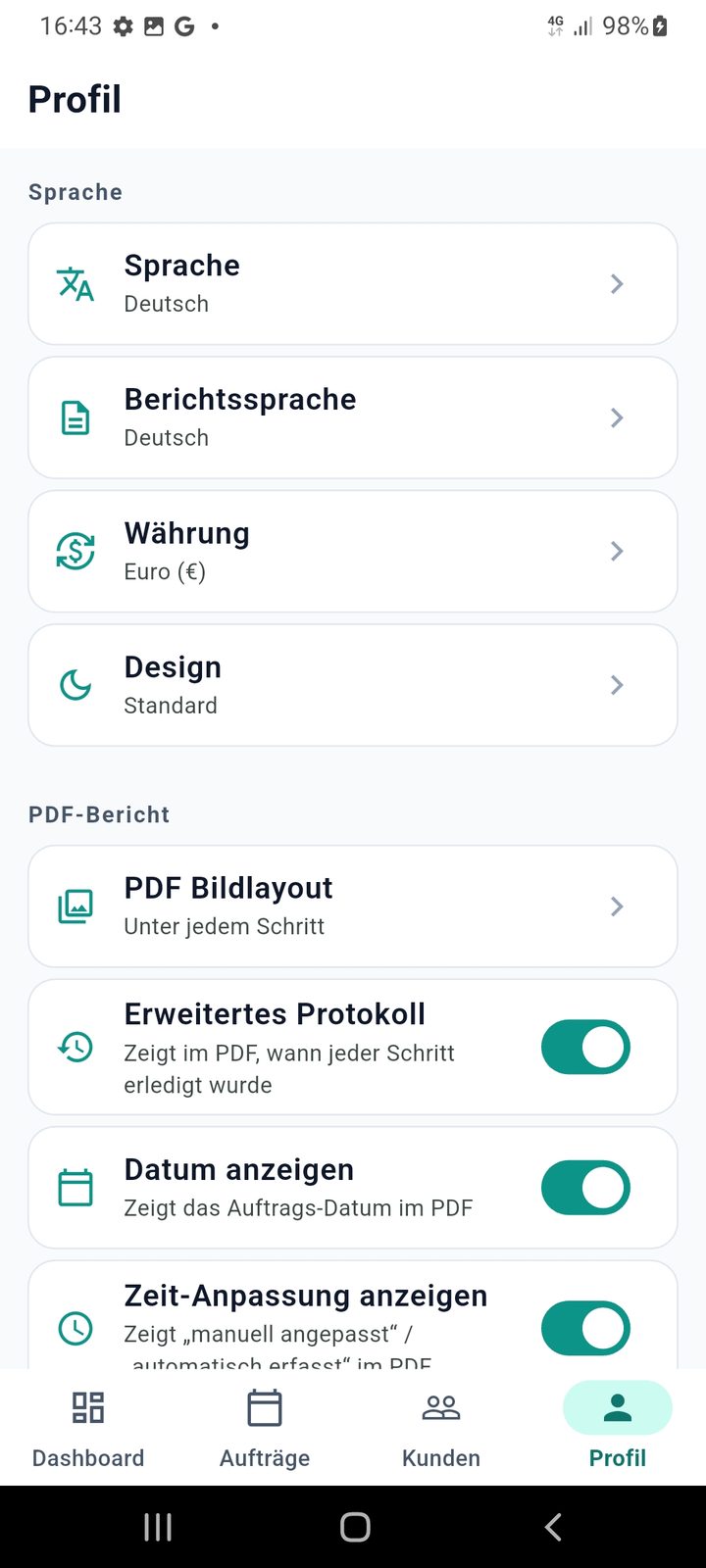
2 PDF report — how your customer report looks
These four settings control the layout and the level of detail of the job report PDF you send to your customer.
2.1 Photo layout
Decides where the photos you took appear in the job report. You have two options:
- Under each step — every photo appears directly beneath the checklist step it belongs to, so the customer follows the work step by step.
- At the end — all photos are collected at the end of the PDF, each one labelled with the name of the step it came from.
2.2 Extended protocol
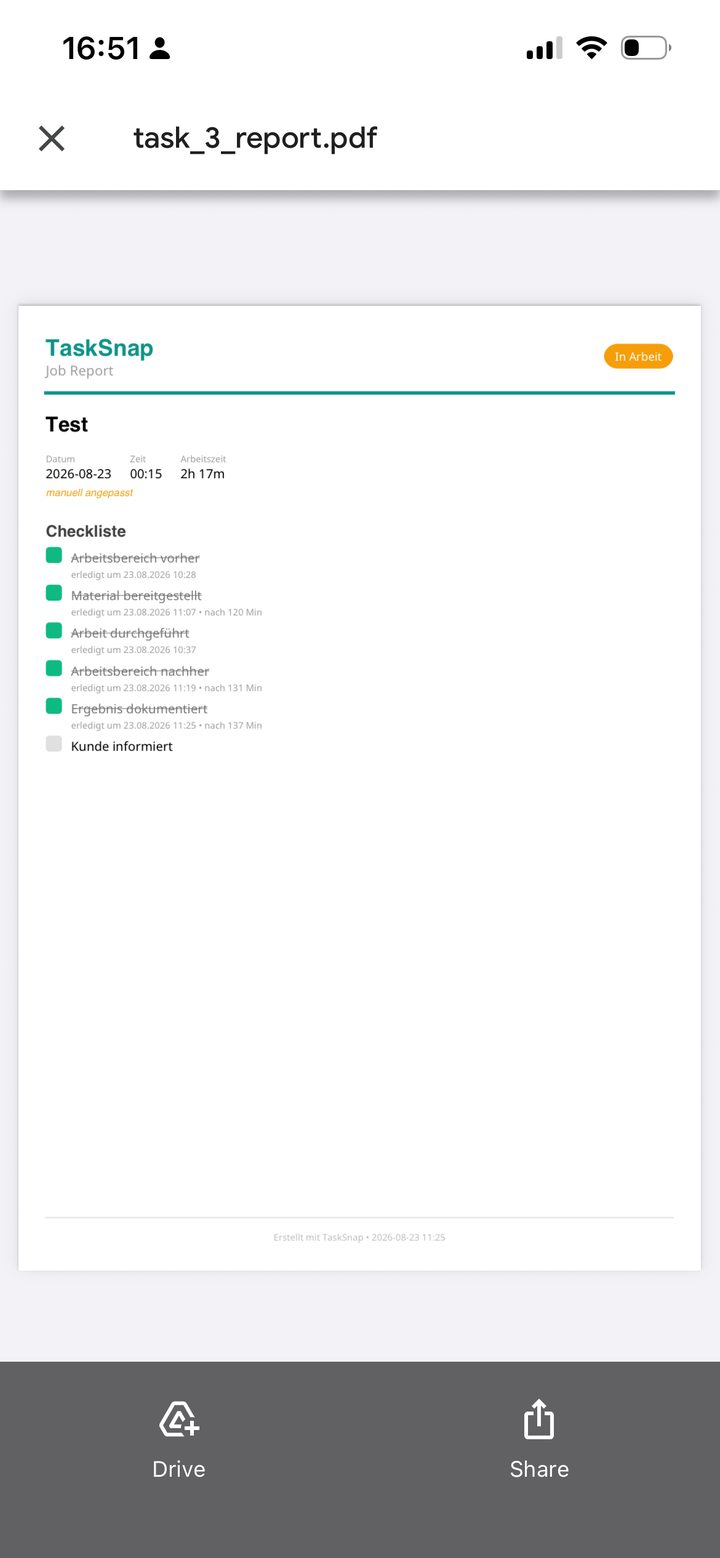
When enabled, the completion date of every single step is printed next to that step in the job report — a full protocol of when each part of the job was finished.
2.3 Show date
Same as the extended protocol, but reduced: only the date is shown, without the extra detail.
2.4 Show time tracking
Every job has its own timer. Switch this on and the report shows at which point on the timer each step of the job was completed — transparent, fair proof of how the hours were actually spent.
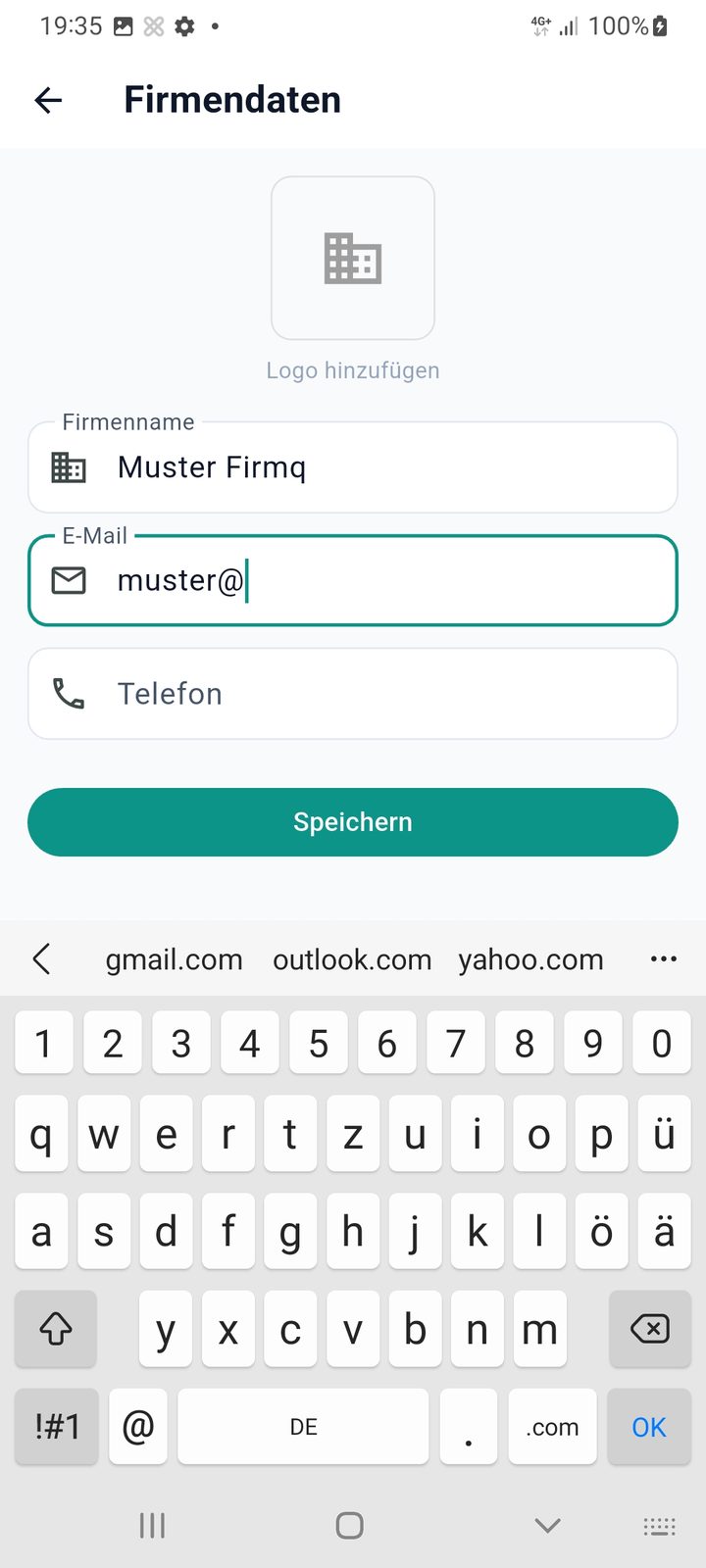
3 Company data
Fill this in once and every report you generate is branded and complete.
- Logo — your logo is placed on the generated PDF report.
- Company name — shown in the header at the top of the PDF.
- Email — your contact address on the report.
- Phone — your contact number on the report.
4 Data, backup & security
TaskSnap keeps everything on your device, which makes your backup the single most important habit. This section covers notifications, backups, restore, the tax export and error reports.
4.1 Notifications
Allow notifications if you want TaskSnap to remind you about upcoming jobs and about your daily backup.
4.2 Create backup
Creates a backup directly on your phone. You will be asked for a PIN code, which is used to encrypt the backup file.
⚠️ Important: store this PIN somewhere safe. The backup is encrypted with it — without the PIN the backup cannot be restored. Keep it in a password manager or on a note you store away from your phone.
4.3 Share backup
The same as creating a backup, with a PIN, but the file is exported off the phone: send it to your email, save it to a folder, push it to WhatsApp — wherever you want your copy to live.
4.4 Restore backup
Import a backup file to bring all jobs, customers and photos back — after a phone change, a reinstall or a mistake. TaskSnap also creates a backup automatically once a day, so you always have a recent restore point.
4.5 CSV export for tax
Exports the data from your jobs as a CSV file, formatted for tax purposes — ready to hand to your accountant or to import into your tax software.
4.6 App error reports
If you enable this, an email is sent to us when an error occurs in the app, so we can look into it and support you. It's optional and off unless you turn it on.
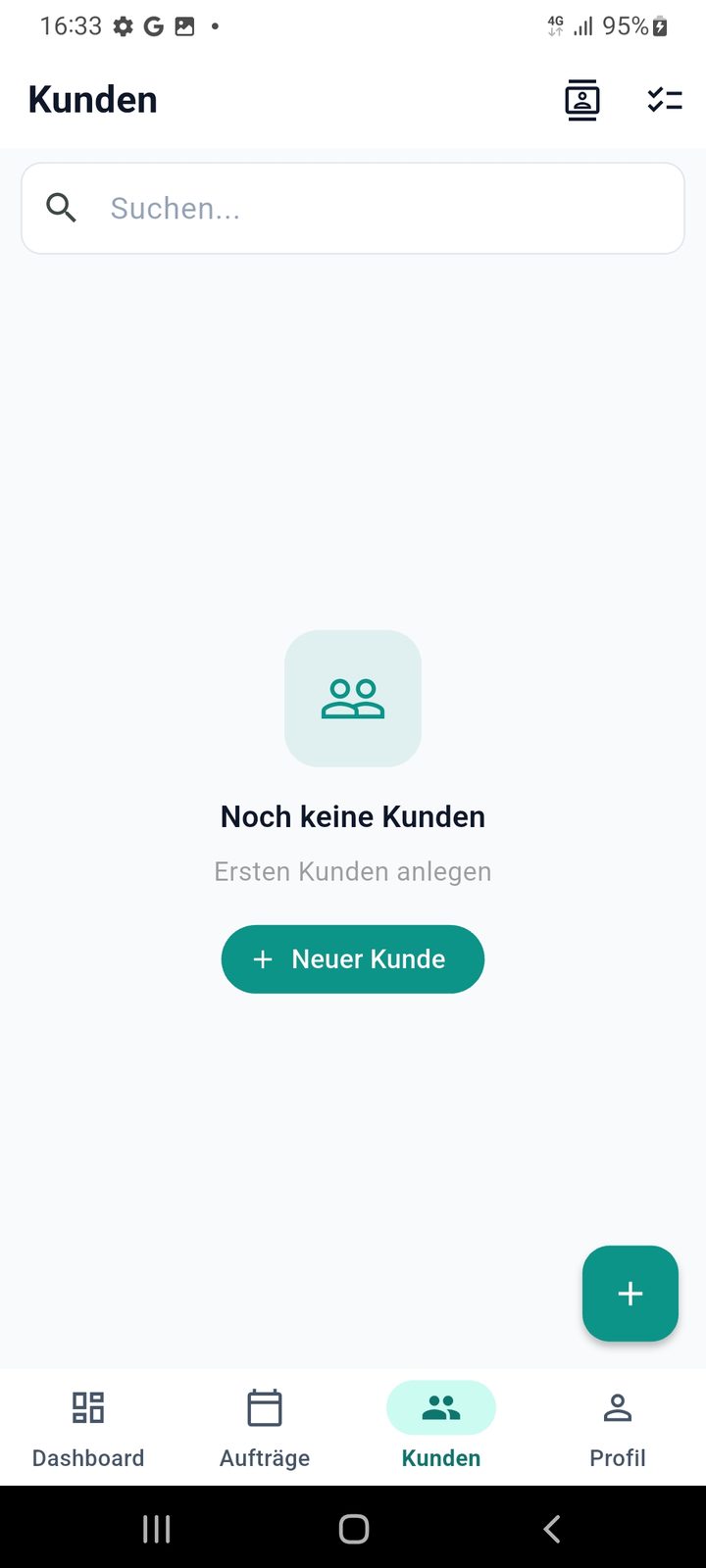
5 Customers
Store your customer data once so you can add them to a job in a couple of taps — and so every job stays in that customer's history.
5.1 Import from your phone contacts
Tap the person icon at the top of the customer screen, allow access to your contacts, then import the people you work with. Prefer to type it in? Tap + New customer.
5.2 Customer history
Open a customer and tap the button at the top next to Save — you see every job you have done for that customer. Handy on the phone when a customer asks "when were you here last?".
6 Jobs — timer, checklist, photos, materials & signature
Jobs are the heart of TaskSnap. This is where you plan the appointment, track the time, document the work with photos and materials, and hand the customer a signed report.
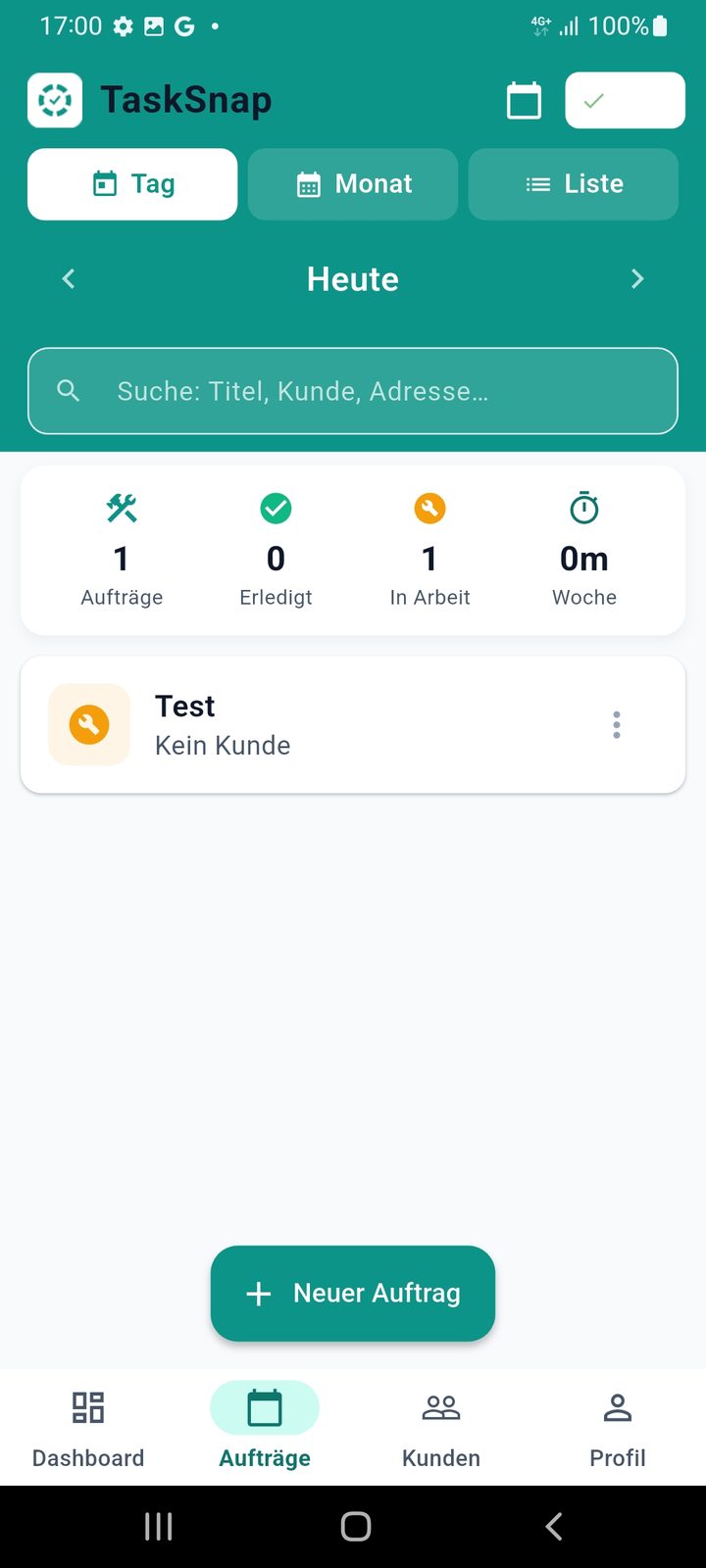
6.1 Three views
- Day — the jobs for the day you selected, searchable.
- Month — every job in a month, so you can search across it.
- List — all your jobs, over the whole period.
6.2 Creating a new job
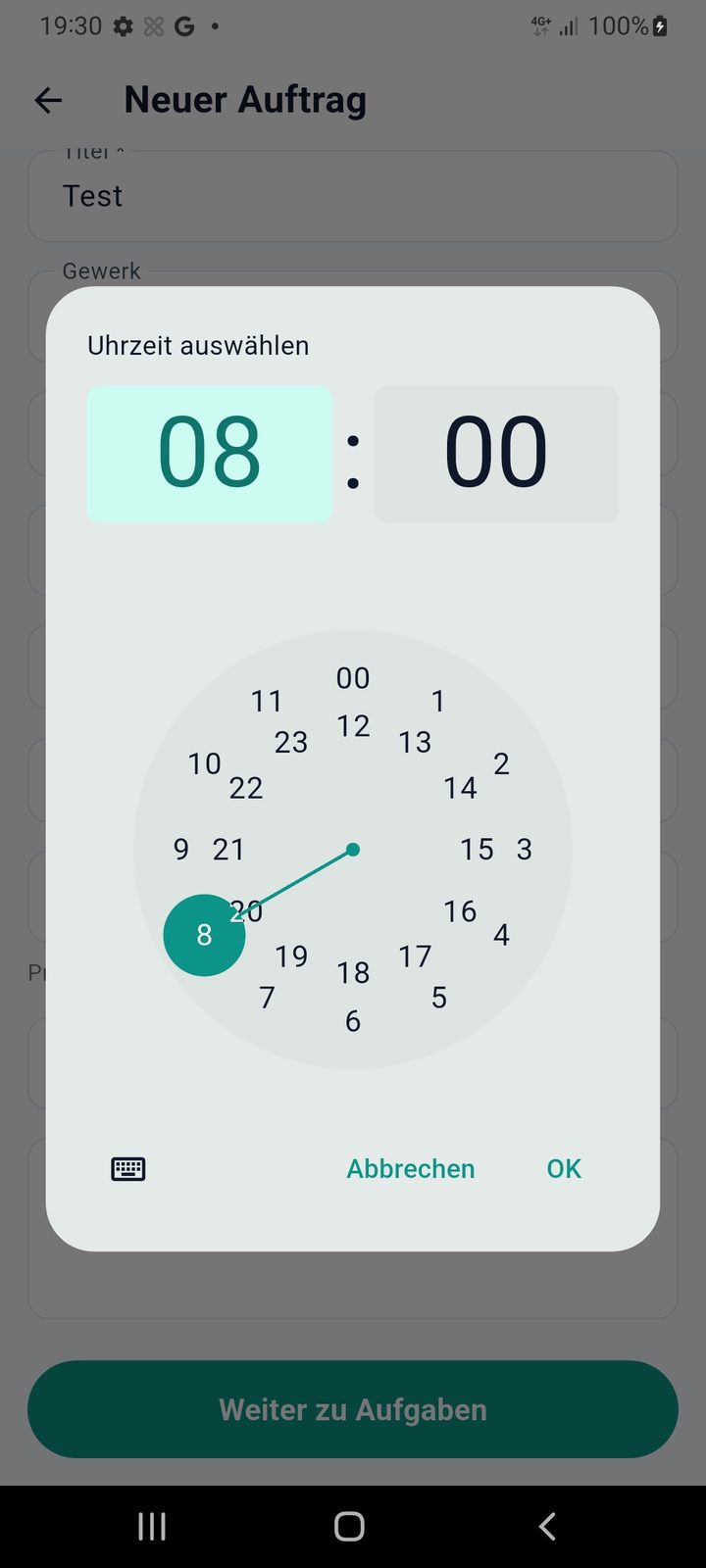
Tap New job and fill in:
- Title — what the job is.
- Customer — pick one from your list. If you don't want to assign a customer, the job stays anonymous.
- Address — the address of the job, taken from the customer you selected.
- Date & time — the day of the job and the time of the appointment.
- Hourly rate — what your work costs per hour. The total is calculated automatically at the end from the time you tracked.
6.3 Reminder
Choose when TaskSnap should remind you about the job: 15 minutes, 30 minutes, 1 hour or 1 day before the appointment.
6.4 Recurring jobs
For repeat work — maintenance, cleaning, a weekly contract — turn on recurring and TaskSnap creates the follow-up jobs for you automatically instead of you re-entering them.
6.5 Inside the job: timer, checklist & photos
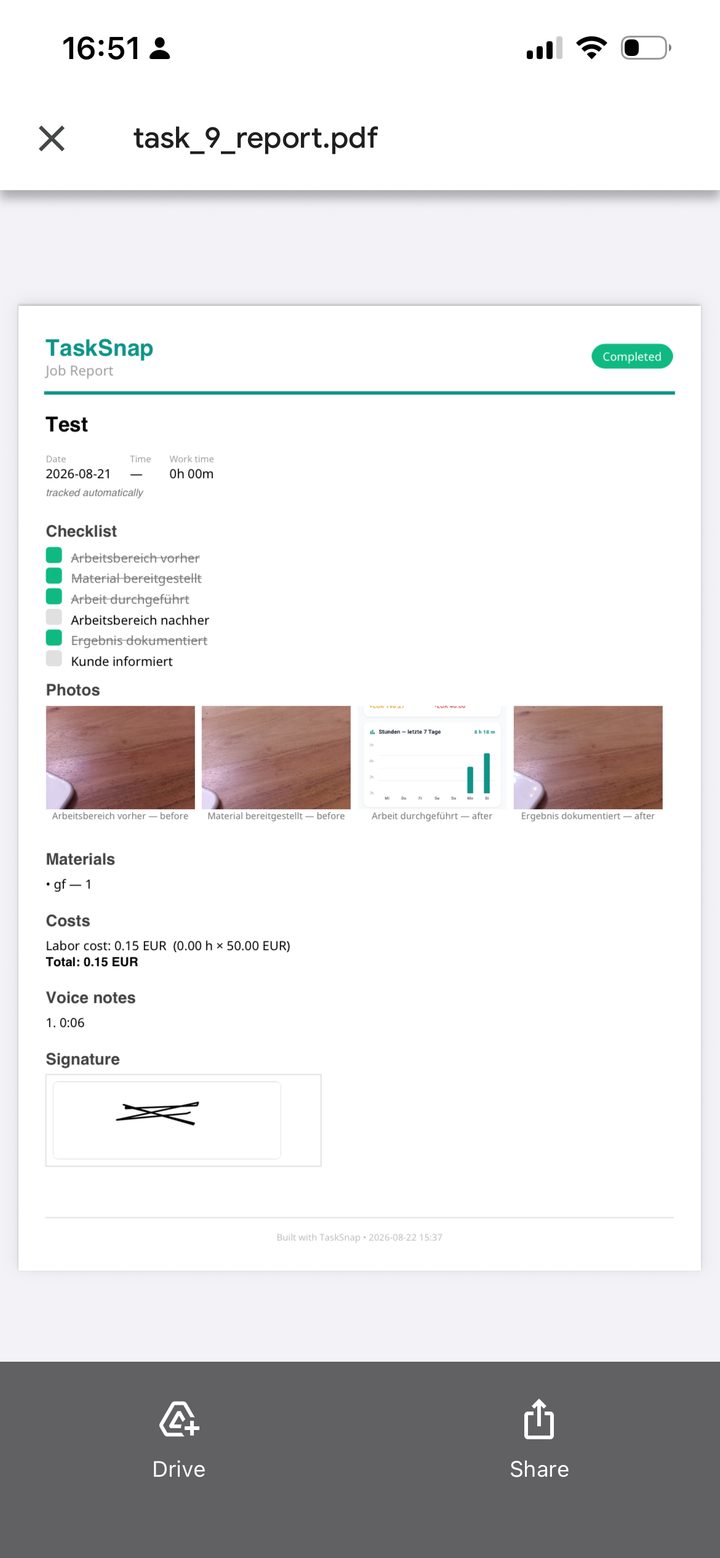
Open the job and you get your task list plus the job timer, so the customer can see in a fair, transparent way how long the work actually took. You can also adjust the time manually if you forgot to start or stop it.
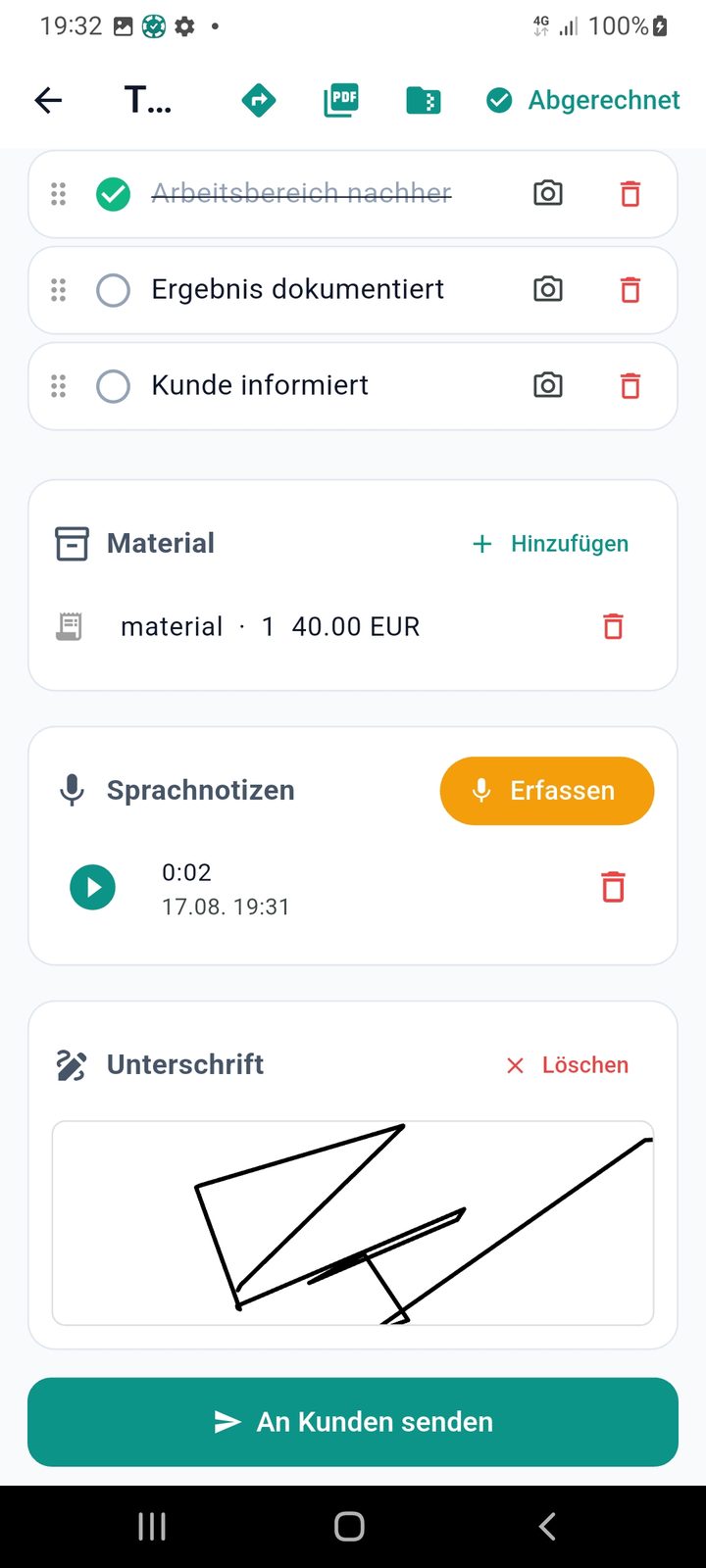
Below that is the checklist. Tap + New step at any time to add a step, and attach one or several photos to every step. To remove a step, use the bin icon on the right.
6.6 Materials, receipts & voice notes
Add the materials you used and the receipts or invoices that go with them, right in the job. Below the boxes you can record a voice note — useful when your hands are dirty and typing isn't an option. Voice notes are sent along with the PDF report.
6.7 Report, signature & sending
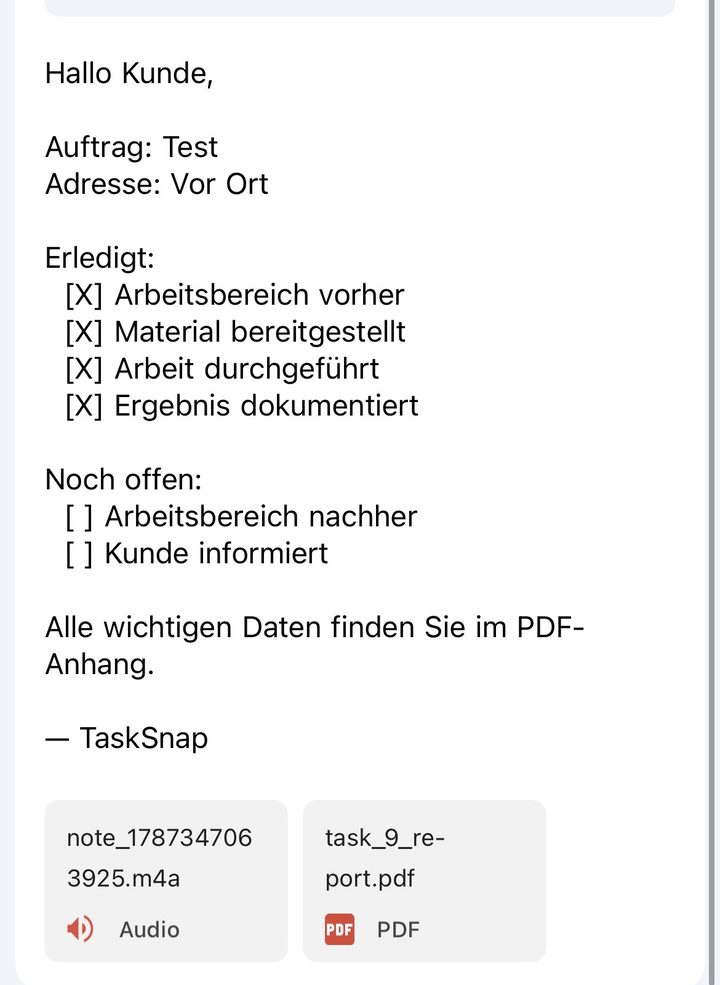
Not finished yet? Tap Save and you can still send the customer a report of the exact current state — they receive all the data collected so far. The customer can sign the document and their signature is shown in the app and on the report. Beyond that, every document is digitally signed automatically.
Send it however your customer prefers: email, WhatsApp or any other app on your phone.
6.8 The four job statuses
💡 Invoicing is where InvoYX takes over: TaskSnap documents the work, InvoYX turns it into the invoice.
7 Dashboard
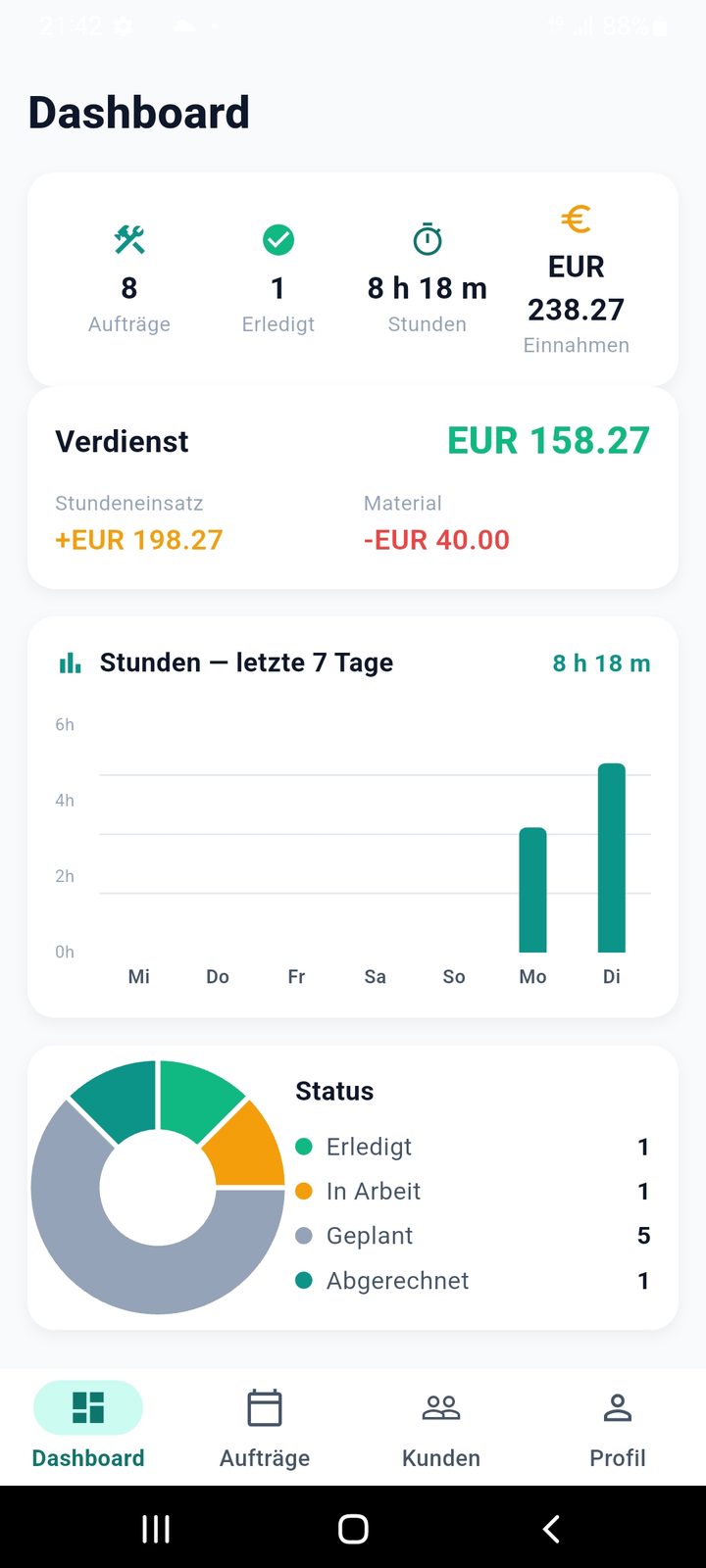
The dashboard is your overview of the whole business: the hours you put in, your income and your expenses, plus a status dashboard and the history of your jobs. One screen to see whether the month is going the way you planned.
? FAQ
Do I need an account or an internet connection?
No. TaskSnap works fully offline — no account, no registration, no cloud. Install it and start tracking jobs immediately.
Where is my data stored?
Only on your device. Jobs, customers, hours, photos, materials and voice notes never leave your phone unless you send a report or a backup yourself.
What happens if I lose my backup PIN?
The backup file is encrypted with your PIN, so without it the backup cannot be restored. Store the PIN in a password manager or on a note kept apart from your phone.
Can I use the app in my language and send reports in my customer's?
Yes — that's exactly what the two separate settings are for. The app language follows your mother tongue, the document language follows your customer.
Can the customer sign the report?
Yes. The customer signs on your phone, the signature is stored with the job and appears on the PDF. On top of that, every document is signed digitally and automatically.
Can I correct the tracked time?
Yes. The timer runs while you work, and you can adjust the time manually at any point — so the report reflects what actually happened.
How do I get my jobs into my tax return?
Use the CSV tax export in the data section. TaskSnap exports your job data in a format prepared for your tax return or your accountant.
How much does TaskSnap cost?
Free for 14 days with every feature unlocked. After the trial it's €6.99 per month, and you can cancel anytime.
Ready to document your next job?
14-day free trial. No account, no cloud, everything stays on your phone.
Get TaskSnap on Google Play Download on the App Store All features →